


Improving Email Tone with Copilot
The tone of your emails can make a significant difference in how your message is received, and sometimes, it can be difficult to portray across written words. With Microsoft 365 Copilot, you can ensure that your emails not only convey the right message but also the right sentiment, professionalism, and engagement.
How to Make Your Email Sound More Professional
Professionalism in emails is one of the main ingredients to making a good impression. Copilot is there to double-check that your context, tone, and content are as hoped. It’s like having a second pair of eyes that ensures your emails are polished and professional before hitting send.
For those looking to improve without the help of Copilot, consider:
Expanding on how to make your emails sound more professional, here are some additional tips that can be applied even without using Copilot:
- Use a Clear and Concise Subject Line: Your subject line should give the recipient a good idea of what the email is about. Avoid vague subjects and make it specific to the content of your email.
- Formal Greetings and Sign-offs: Start with a formal greeting like “Dear [Name]” or “Hello [Name],” and end with a professional sign-off such as “Best regards,” “Sincerely,” or “Thank you.”
- Be Direct and to the Point: Keep your email focused on the main message or request. Avoid long-winded explanations and get straight to the point.
- Use Professional Language: Avoid slang, jargon, or overly casual language. Stick to standard English and use complete sentences.
- Proofread Before Sending: Always check your email for spelling, grammar, and punctuation errors. A well-written email reflects your professionalism.
- Avoid Emotional Language: Keep your tone neutral, especially when discussing sensitive topics. This helps maintain professionalism and prevents misunderstandings.
- Structure Your Email: Use paragraphs to break up text, bullet points for lists, and headings for sections if the email is long. This enhances readability.
- Be Polite: Even if the email is a complaint or a difficult message, maintain a polite tone. Phrases like “please” and “thank you” go a long way.
- Use Templates for Frequently Sent Emails: If you often send similar emails, create templates that you can customise for each recipient. This ensures consistency and saves time.
- Consider the Recipient: Tailor your language and tone to the person you are emailing. What works for a colleague may not be suitable for a client or a senior executive.
Remember, the key to professional emails is clear communication.
How to Use Copilot Coaching
Copilot Coaching is a feature that works alongside you to improve your emails. It provides suggestions on how to be more direct or add warmth to engage your readers better. For instance, it might suggest appreciating individual contributions to make the recipients feel more valued and directly involved.
To use this feature, once you have a draft, click on the Copilot icon in the banner and click ‘Coaching by Copilot’.
What Else Can Copilot Do in Outlook?
Summarise Email Threads
Copilot can quickly summarise long email threads, giving you the gist without having to read through every message. This saves time and helps you stay on top of your communications.
WATCH: How to summarise email threads with Copilot
Find Emails and Attachments
Searching for that one crucial email or attachment can be like finding a needle in a haystack. Copilot simplifies this by finding the exact emails and attachments you need, when you need them.
WATCH: How to find emails and attachments with Copilot
Drafting Full Emails and Replies
Drafting emails can be time-consuming, especially when you’re trying to get the tone just right. Copilot can draft full emails and replies for you, which you can then personalise and send. It’s like having a personal assistant for your inbox.
Remember, while Copilot creates the email, it’s still important to double-check and make sure the information is correct. It’s there to work alongside you, not replace you. With Copilot, you can take your email communication to the next level, ensuring clarity, professionalism, and the perfect tone every time.
WATCH: How to reply to long email threads with Copilot
Get Copilot-Ready
Copilot’s powerful feature set makes it a great addition to any workforce. But setting up Copilot securely can feel daunting.
AAG’s comprehensive support helps you get the most out of Copilot. An initial consultation and readiness assessment ensures that the new services can be accessed securely, while customised training helps your team understand Copilot features and its applications in their workflows. We’ll even run regular updates based on your usage to keep your Copilot services optimised.
Contact us today to get your Copilot readiness assessment.

How can AAG help you with Copilot?

How to use Copilot to keep meeting minutes and action points (updated 2026)
Managing emails efficiently can be a daunting task. Copilot in Outlook can enable you to catch up, prepare and follow-up with ease. Read more. Read More

What is Microsoft Copilot?
Microsoft Copilot is the new AI-powered assistant that promises to enhance productivity for businesses using 365 products. Read More
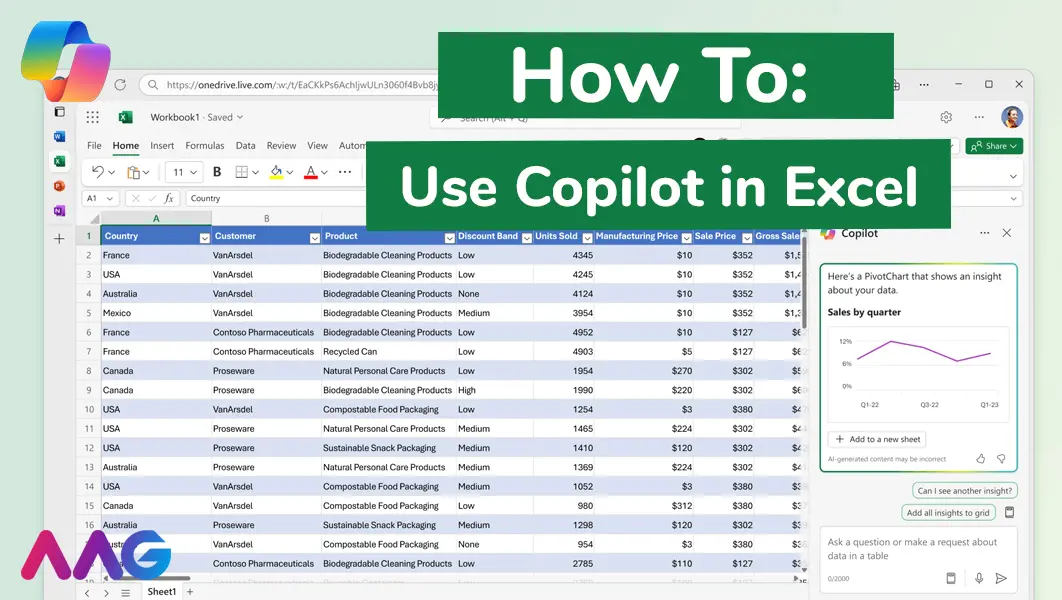
How to use Microsoft Copilot in Excel
Managing huge data sets and organising multiple spreadsheets is often time-consuming and tedious. Microsoft Copilot offers teams a powerful tool for streamlining data analysis and a range of other tasks within Excel - we show you how. Read More
Related insights
Browse more articles from our experts and discover how to make better use of IT in your business.

Employee of the Quarter – Ben Bedford
Congratulations to Ben Bedford, our Service Delivery Manager, who has been awarded Employee of the Quarter. He embodies all of our values and we’re both proud and delighted to celebrate his work and achievements this quarter. Read More

Welcoming Jake Taylor to the AAG service desk
IT service roles really do take all kinds, and we’re delighted to welcome former Head Chef, of the “Best Restaurant in Chesterfield” to AAG. Read More

20 Essential Questions To Ask Your IT Provider in 2026
Ensure you're getting the best IT support. Ask your existing provider these 20 essential questions to evaluate their services and consider if it's time to switch. Read More
