


How to Use Copilot to Keep Teams Meeting Minutes and Action Points (updated 2026)
Keeping track of meeting notes is a nightmare for anyone in business – especially when you’re always straight into the next meeting. This common problem now has a solution, and if you’re using Microsoft 365, you’re possibly already paying for it. Now discover how Microsoft Copilot in Teams works.
In 2026, Microsoft 365 Copilot has become even smarter and more deeply integrated across Teams and Microsoft 365 apps, making automatic meeting minutes and actionable insights more powerful than when this article was first published.
Why Copilot Is Essential for Modern Meetings
Remember when you had a designated person (the organised one) taking the meeting minutes? They’d then organise and share them with the team. Well, Copilot now does all of this:
- Summarise key discussions and decisions both during and after meetings.
- Suggest and assign action items automatically as they’re discussed.
- Integrate with other apps (Word, Loop, Excel) to export minutes, task lists, and more.
- Handle multilingual meetings and provide summaries in your preferred language.
- Analyse on-screen content shared during meetings, so no visual slide or spreadsheet detail is missed in your summary.
Requirements & Licensing (2026) for Copilot
To unlock the full capabilities, you’ll need:
- Microsoft 365 Copilot licence – required for premium meeting AI features like full recap, action extraction, and cross-app exports.
- Teams Premium or Copilot enabled meetings – necessary for live transcription and post-meeting insights.
Note: Businesses still control Copilot usage through meeting settings, allowing Copilot to be turned off for certain meetings if needed.
In a Microsoft Work Trend Index report, Copilot users were said to have achieved the following:
- Summarise meetings 4x faster
- Were 2x more productive using Copilot in a Teams meeting
- Found the task of summarising the meeting 58% less draining
With each new piece of tech that is launched, there is always an investment consideration on the back of it. Whether this be time, resource or monetary investment.
This is the same for Microsoft Copilot for 365. However, with the ability to capture meeting minutes and action points from Microsoft Teams alone, we feel that every small-to-medium business will see a return on their investment.
Let us explain by showcasing how simple it is to use Copilot to take meeting minutes and action points for you.
Meetings are an essential part of business communication, but keeping track of every discussion and action point can be a challenge, especially when meetings stack back-to-back. Enter Microsoft Teams Copilot, your digital assistant for meeting management. Here’s how you can use Copilot to capture and summarise your meeting minutes. The result? No action point slips through the cracks.
Step 1: Record Your Teams Meeting
Start by recording your Teams meeting. Once done, you’ll have access to a transcript if you’ve enabled this feature. For video meetings, the recording will be available alongside the transcript.
Step 2: Access Copilot for Intelligent Recap
With Teams Premium, you get the intelligent recap feature, which highlights when and what each participant spoke during the meeting. To access Copilot, look for the Copilot icon and click on it to open the chat window.
Note: You do not need Copilot if you are just using intelligent recap.
Step 3: Summarise Meeting Discussions
Even if you join a meeting late or miss it entirely, Copilot can help you catch up. Ask Copilot to summarise what was discussed, and it will provide you with a concise overview. For example, if the meeting was about adopting a four-day working week, Copilot can recap the proposal, the concerns raised, and the support for the idea.
Pro Tip: Create a Pros and Cons Table
To extract specific details of the meeting, such as the pros and cons discussed, you can ask Copilot to generate a table. This feature is particularly useful for breaking down complex discussions into easily digestible points. For instance, Copilot can list the benefits of a four-day working week, like improved employee health and cost savings, alongside potential drawbacks.
Step 4: Identify Action Items
Copilot doesn’t just help with understanding the meeting’s content; it can also pull-out actionable items. Ask it to outline the steps discussed for implementing the four-day working week, and it will provide a list of tasks, such as proposing the idea as a pilot project to the CEO and monitoring various performance metrics. All of this will be complete with who is assigned the action, and a link to the discussion in the transcript.
Step 5: Review and Refine
If you feel that Copilot hasn’t captured the essence of the meeting accurately, you can always refine your query. Copilot will reassess the transcript and provide a revised summary or action list.
Pro Tip: Use Copilot to help draft an email to share the minutes and action points with meeting attendees.

The Power of Copilot in Meetings
Does this feature alone deliver a return on investment for Microsoft Copilot? It passes with flying colours for us.
With Copilot, you can stay fully engaged in the conversation without worrying about note-taking. It works in the background, capturing all the details, so you can focus on the discussion. It also doesn’t miss a beat, from the minute you begin the recording to the end. It will even provide you with a summary of answered questions before the end of the meeting.
This tool really comes into its own when you have a day packed with meetings, ensuring that you retain all the critical information from each one.
By following these steps, you can take the power of Copilot, and improve your day-to-day by keeping accurate meeting minutes and track action points effortlessly.
If Microsoft Copilot is something that AAG can help your business discover, please book a call with our team today using the calendar below.


How to use Microsoft Copilot to create a Powerpoint
Creating informative presentations has never been quicker or easier, thanks to Microsoft Copilot. We show you how to use this transformative tool in PowerPoint. Read More
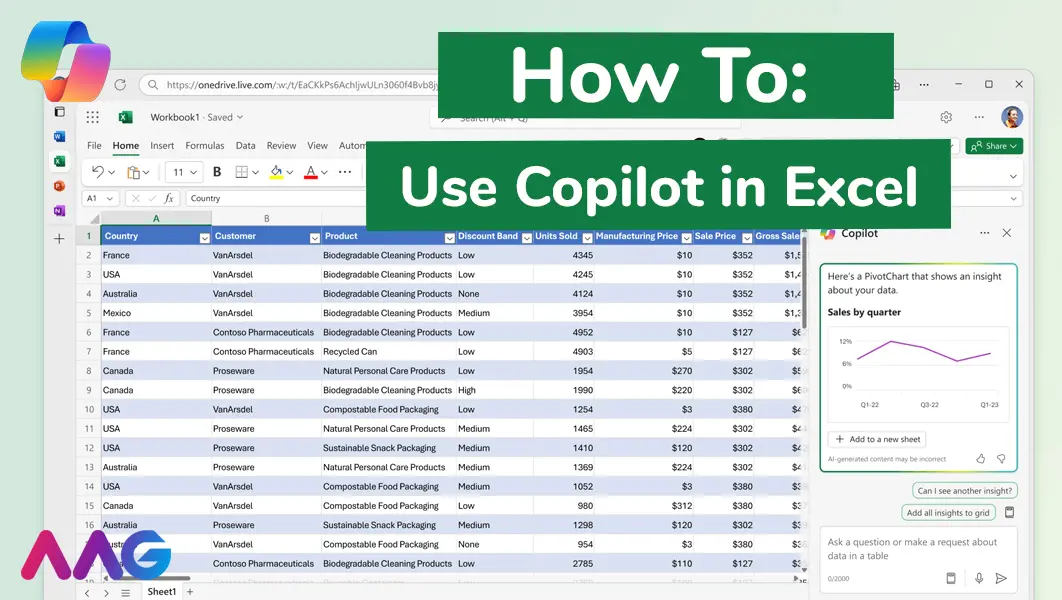
How to use Microsoft Copilot in Excel
Managing huge data sets and organising multiple spreadsheets is often time-consuming and tedious. Microsoft Copilot offers teams a powerful tool for streamlining data analysis and a range of other tasks within Excel - we show you how. Read More

How to Use Microsoft Copilot to Compare Two Word Documents
In Word, Microsoft Copilot serves as a catalyst for the creative process, sparing you the frustration of starting from scratch. We show you how to get the best out of this transformative tool. Read More
Book your free Copilot demo
Related insights
Browse more articles from our experts and discover how to make better use of IT in your business.

Employee of the Quarter – Ben Bedford
Congratulations to Ben Bedford, our Service Delivery Manager, who has been awarded Employee of the Quarter. He embodies all of our values and we’re both proud and delighted to celebrate his work and achievements this quarter. Read More

Welcoming Jake Taylor to the AAG service desk
IT service roles really do take all kinds, and we’re delighted to welcome former Head Chef, of the “Best Restaurant in Chesterfield” to AAG. Read More

20 Essential Questions To Ask Your IT Provider in 2026
Ensure you're getting the best IT support. Ask your existing provider these 20 essential questions to evaluate their services and consider if it's time to switch. Read More
