


Additional monitors have a whole host of benefits, especially around productivity. Here is how you can quickly connect an additional monitor to your computer. Make your computing experience more enjoyable, efficient and effective.
Step-by-Step Guide to Connect an Additional Monitor
1. Check Your Ports
First, look at the ports on your computer and the monitor. Common ports include HDMI, VGA, and DisplayPort. Make sure you have the right cable to connect the two devices.
2. Turn Off Your Computer and Monitor
Before connecting the monitor, turn off both your computer and the monitor. This helps prevent any potential damage to the devices.
3. Connect the Cable
Plug one end of the cable into your computer and the other end into the monitor. Make sure the connections are secure.
4. Turn On Your Devices
Turn on your computer and the monitor. Your computer should automatically detect the new monitor. If it doesn’t, don’t worry – you can manually adjust the settings.
5. Adjust Display Settings
On your computer, go to the display settings (search for ‘Display Settings’ on your device or on Windows 11 it’s in Settings > System > Display) . Here, you can choose how you want to use the additional monitor. You can extend your display, which gives you more screen space, or duplicate it, which shows the same content on both screens.
6. Arrange Your Monitors
In the display settings, you can also arrange your monitors. This means you can decide which monitor is on the left and which is on the right. This helps your mouse move smoothly between the screens.
7. Set the Resolution
Make sure the resolution of the additional monitor matches your main screen. This ensures that everything looks clear and sharp. You can adjust the resolution in the display settings.
8. Test Your Setup
Open a few programs and move them between the monitors to make sure everything is working correctly. If something doesn’t look right, go back to the display settings and make any necessary adjustments.
9. Enjoy Your New Setup
Now that your additional monitor is connected and set up, enjoy the extra space! You can use one screen for work and the other for entertainment, or have multiple documents open at once.
Best Settings for Multiple Monitors
Setting up multiple monitors isn’t just about plugging in an extra screen — it’s about optimising the settings for a better experience.
- Adjust your display arrangement in Windows or macOS to match your physical monitor layout
- Set the primary display to the one you use most for work to keep your taskbar and main apps easily accessible
- Use Extend Mode (Windows: Windows + P) to expand your workspace rather than duplicating screens.
- Adjust the resolution and scaling to ensure text and images appear crisp, especially if you have monitors of different sizes or resolutions.
- Enable Night Light (Windows) or Night Shift (Mac) to reduce eye strain and tweak the refresh rate for smoother performance, especially for tasks like video editing or gaming


How to use Copilot to keep meeting minutes and action points (updated 2026)
Managing emails efficiently can be a daunting task. Copilot in Outlook can enable you to catch up, prepare and follow-up with ease. Read more. Read More

What is Microsoft Copilot?
Microsoft Copilot is the new AI-powered assistant that promises to enhance productivity for businesses using 365 products. Read More
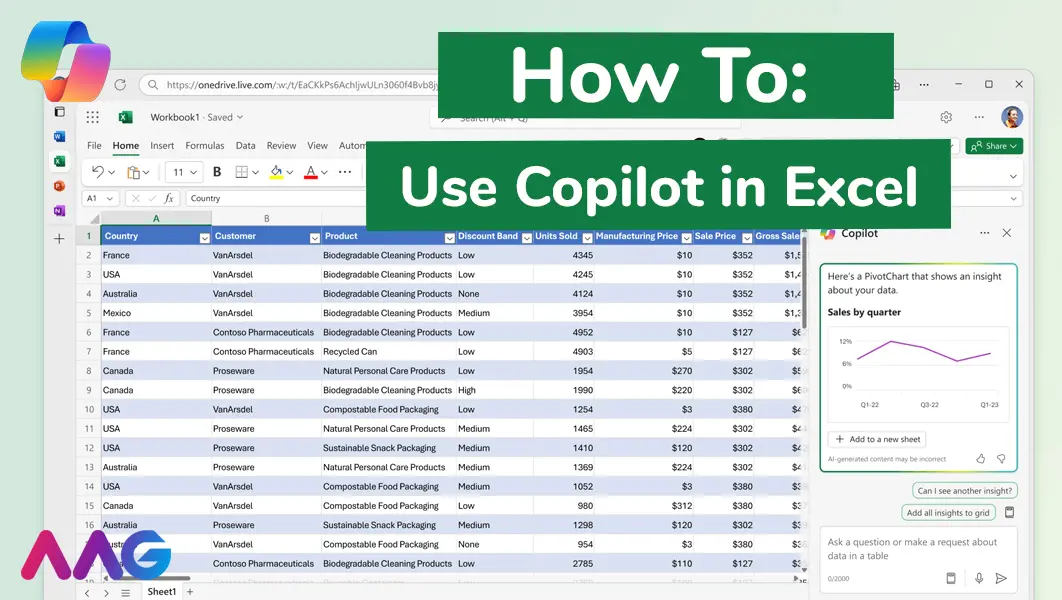
How to use Microsoft Copilot in Excel
Managing huge data sets and organising multiple spreadsheets is often time-consuming and tedious. Microsoft Copilot offers teams a powerful tool for streamlining data analysis and a range of other tasks within Excel - we show you how. Read More
How can AAG help with your IT support?
Related insights
Browse more articles from our experts and discover how to make better use of IT in your business.

Employee of the Quarter – Ben Bedford
Congratulations to Ben Bedford, our Service Delivery Manager, who has been awarded Employee of the Quarter. He embodies all of our values and we’re both proud and delighted to celebrate his work and achievements this quarter. Read More

Welcoming Jake Taylor to the AAG service desk
IT service roles really do take all kinds, and we’re delighted to welcome former Head Chef, of the “Best Restaurant in Chesterfield” to AAG. Read More

20 Essential Questions To Ask Your IT Provider in 2026
Ensure you're getting the best IT support. Ask your existing provider these 20 essential questions to evaluate their services and consider if it's time to switch. Read More
