


How to Switch from a Password to a PIN on Windows
Switching from a password to a PIN on Windows changes the way you unlock your computer. Instead of typing a long password, you can use a shorter, easier-to-remember PIN. This can make logging in faster and more convenient while still keeping your computer secure.
Using a PIN means you can enjoy a quicker and easier way to log in to your computer, whilst having a long and complex password to keep it secure from online attacks.

How to set up a PIN on Windows
- Open Settings: Start by clicking on the Start menu (the Windows icon) at the bottom left corner of your screen. Then, click on the gear icon to open the Settings menu.
- Go to Accounts: In the Settings menu, find and click on “Accounts.” This is where you manage your sign-in options and other account settings.
- Sign-in Options: In the Accounts menu, look for “Sign-in options” on the left-hand side. Click on it to see different ways you can sign in to your computer.
- Add a PIN: Under the “Manage how you sign in to your device” section, find the option that says “PIN (Windows Hello).” Click on “Add” to start setting up your PIN.
- Verify Your Identity: Before you can add a PIN, Windows will ask you to verify your identity. This usually means entering your current password. Type in your password and click “OK” or “Next.”
- Create Your PIN: A new window will pop up asking you to create a PIN. Enter a PIN that you can easily remember but is hard for others to guess. You’ll need to enter it twice to confirm. Click “OK” or “Next” when you’re done.
- PIN Set Up: Once you’ve created your PIN, Windows will let you know that your PIN is set up. You can now use this PIN to sign in to your computer instead of your password.
- Test Your PIN: Lock your computer by pressing the Windows key + L. Then, try signing in with your new PIN to make sure it works.
Is a PIN as secure as a long and complex password for my Windows device?
Using a PIN on Windows can be safer than a long password in certain contexts. Here are some key points to consider:
Local Device Security: A PIN is tied to the specific device it is set up on. This means that even if someone steals your PIN, they cannot use it to access your account from another device. In contrast, a password can be used to log in from any device.
Ease of Use: PINs are generally shorter and easier to remember than long passwords, which can encourage users to choose stronger, more complex PINs without the burden of memorising them.
Two-Factor Authentication (2FA): Combining a PIN with another form of authentication, such as a fingerprint or facial recognition, can significantly enhance security. This is known as two-factor authentication (2FA), which adds an extra layer of protection.
Protection Against Online Attacks: Since a PIN is only used locally and not transmitted over the internet, it is less susceptible to online attacks such as phishing or man-in-the-middle attacks.


How to use Copilot to keep meeting minutes and action points (updated 2026)
Managing emails efficiently can be a daunting task. Copilot in Outlook can enable you to catch up, prepare and follow-up with ease. Read more. Read More

What is Microsoft Copilot?
Microsoft Copilot is the new AI-powered assistant that promises to enhance productivity for businesses using 365 products. Read More
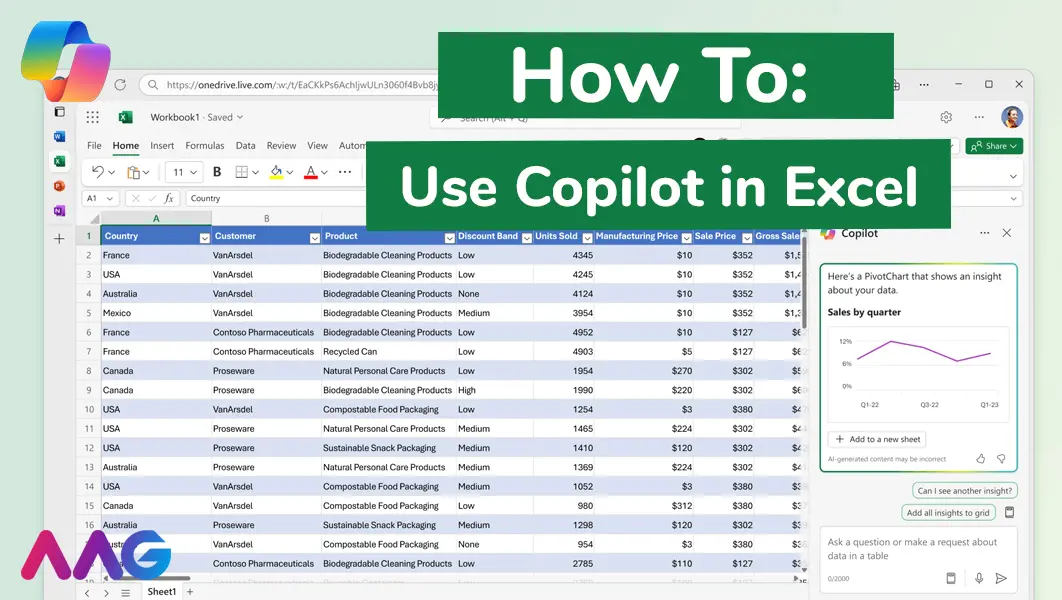
How to use Microsoft Copilot in Excel
Managing huge data sets and organising multiple spreadsheets is often time-consuming and tedious. Microsoft Copilot offers teams a powerful tool for streamlining data analysis and a range of other tasks within Excel - we show you how. Read More
How can AAG help with your IT support?
Related insights
Browse more articles from our experts and discover how to make better use of IT in your business.

Employee of the Quarter – Ben Bedford
Congratulations to Ben Bedford, our Service Delivery Manager, who has been awarded Employee of the Quarter. He embodies all of our values and we’re both proud and delighted to celebrate his work and achievements this quarter. Read More

Welcoming Jake Taylor to the AAG service desk
IT service roles really do take all kinds, and we’re delighted to welcome former Head Chef, of the “Best Restaurant in Chesterfield” to AAG. Read More

20 Essential Questions To Ask Your IT Provider in 2026
Ensure you're getting the best IT support. Ask your existing provider these 20 essential questions to evaluate their services and consider if it's time to switch. Read More
