


How to Recover a Previous Version of a File in SharePoint
Recovering a previous version of a file in SharePoint is like turning back time for your document. If you’ve made changes to a file and need to go back to an earlier version, Microsoft SharePoint makes it easy. This can be really useful if you accidentally delete important information or if you want to see how a document looked before recent changes.
By following these steps, you can successfully recover a previous version of a file in Microsoft SharePoint. This feature can save you a lot of time and stress if you ever need to undo changes or retrieve lost information.
How to recover a file from SharePoint
- Open SharePoint: Start by opening your SharePoint site in your web browser. This is where your files are stored.
- Find Your Document: Navigate to the document library where your file is located. Click on the file you want to recover a previous version of.
- Open the Version History: Once you’ve selected your file, look for the “…” (ellipsis) next to the file name or right-click on the file. In the menu that appears, click on “Version History.”
- View Previous Versions: A new window will open, showing a list of all the previous versions of the file. Each version will have a date and time, so you can see when changes were made.
- Select a Version: Find the version you want to recover. Click on the date or the “…” (ellipsis) next to that version. In the menu that appears, click “Restore.”
- Confirm Restoration: A confirmation message will pop up, asking if you’re sure you want to restore this version. Click “OK” or “Restore” to confirm.
- Check Your File: Your file will now be restored to the version you selected. Open the file to make sure it looks the way you want it to.
- Save Your Changes: If you need to make any further changes, go ahead and do so. Remember to save your file when you’re done.


How to use Copilot to keep meeting minutes and action points (updated 2026)
Managing emails efficiently can be a daunting task. Copilot in Outlook can enable you to catch up, prepare and follow-up with ease. Read more. Read More

What is Microsoft Copilot?
Microsoft Copilot is the new AI-powered assistant that promises to enhance productivity for businesses using 365 products. Read More
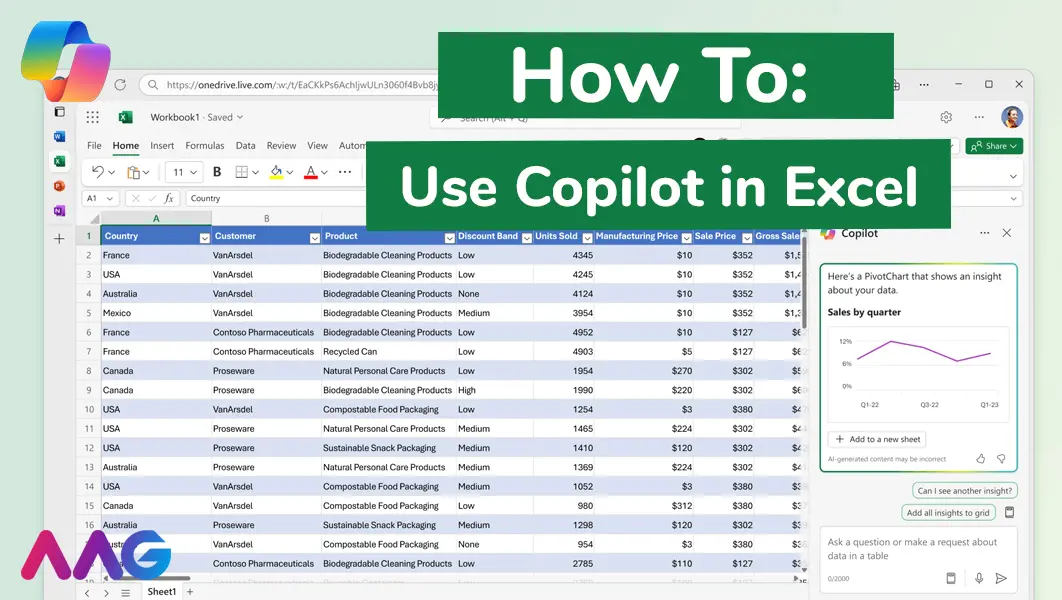
How to use Microsoft Copilot in Excel
Managing huge data sets and organising multiple spreadsheets is often time-consuming and tedious. Microsoft Copilot offers teams a powerful tool for streamlining data analysis and a range of other tasks within Excel - we show you how. Read More
How can AAG help with your IT support?
Related insights
Browse more articles from our experts and discover how to make better use of IT in your business.

Employee of the Quarter – Ben Bedford
Congratulations to Ben Bedford, our Service Delivery Manager, who has been awarded Employee of the Quarter. He embodies all of our values and we’re both proud and delighted to celebrate his work and achievements this quarter. Read More

Welcoming Jake Taylor to the AAG service desk
IT service roles really do take all kinds, and we’re delighted to welcome former Head Chef, of the “Best Restaurant in Chesterfield” to AAG. Read More

20 Essential Questions To Ask Your IT Provider in 2026
Ensure you're getting the best IT support. Ask your existing provider these 20 essential questions to evaluate their services and consider if it's time to switch. Read More
