


How to Use Microsoft Copilot to Compare Two Word Documents
Microsoft Copilot is the latest AI advancement that helps streamline processes and enhance productivity. But how does it achieve this? By integrating with all Microsoft 365 apps, it becomes your own personal assistant.
The biggest efficiency gain we have seen when using Microsoft Copilot in Word has been the ability to quickly compare two documents. This could be two CVs for a job you’re advertising, a second version of a 20 page policy that has been written, or even proposal documents between two suppliers. Lets take a look at how to use Copilot in Word.
Opening the Door to Efficiency
Imagine you’re working on a policy change or onboarding a new vendor. You have two versions of a document: the original and the updated one. Traditionally, comparing these documents would be a tedious manual task, but with Copilot, it’s automated in minutes.
The Simple Steps
Here’s how you can use Copilot to compare two Word documents without getting tangled in technical jargon:
- Open Word: Start with a blank document or the one you wish to compare.
- Engage Copilot: Look for the Copilot icon – it’s your gateway to smart assistance.
- Command with Ease: Use simple commands like “/compare policy one with policy two” to instruct Copilot to analyse the differences between two documents.
- Review the Results: Copilot will present a comparison, highlighting modifications, deletions, or any other changes
Beyond Comparison
Copilot doesn’t just compare; it understands the context. It categorises documents based on sensitivity, ensuring confidential information stays within the organisation. This internal sensitivity label is a shield against data leaks, aligning with data governance policies.
A Real-World Example
Consider a scenario where a company’s privacy policy changes include sharing data with a third-party platform or relocating servers to a less secure location. Copilot can flag these critical changes, enabling you to make informed decisions swiftly.
The Bottom Line
Whether it’s a policy document, a statement of work, or even a CV, Copilot empowers you to compare and contrast with unparalleled ease. It’s not about generating new content; it’s about gaining insights quickly and accurately, saving you time for what really matters – driving your business forward.

How can Copilot be used to create a Business Plan?
Within Microsoft Word, Copilot can help create a business plan by simply providing the below prompt on a blank document;
‘Create a business plan for a new coffee shop in the centre of London. The business plan should be aimed at attracting investors, so the idea could be expanded into a franchise model’
Copilot quickly generates a comprehensive business plan to expand opportunities using a franchise model while referencing relevant market data and trends. With Copilot’s assistance, valuable time and resources have been saved, while ensuring the document is well-researched and tailored to investor expectations.


How to use Copilot to keep meeting minutes and action points (updated 2026)
Managing emails efficiently can be a daunting task. Copilot in Outlook can enable you to catch up, prepare and follow-up with ease. Read more. Read More

Copilot FAQs
Whether drafting documents, summarising emails, or designing slides, Copilot can save you valuable time with cutting-edge AI features in your favourite Microsoft 365 apps. We've compiled some frequently asked questions to guide you through your Copilot journey. Read More
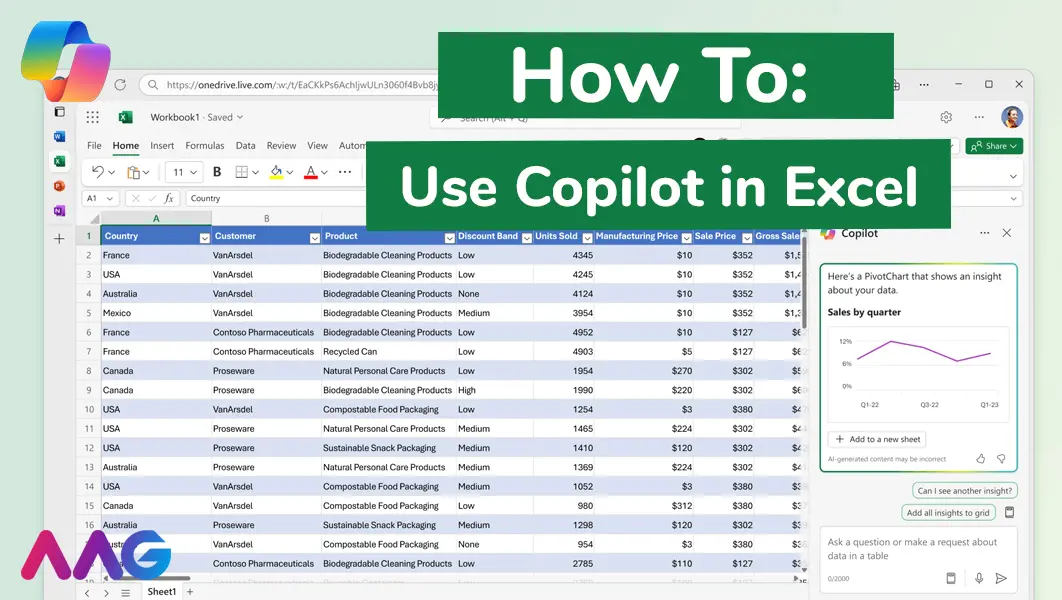
How to use Microsoft Copilot in Excel
Managing huge data sets and organising multiple spreadsheets is often time-consuming and tedious. Microsoft Copilot offers teams a powerful tool for streamlining data analysis and a range of other tasks within Excel - we show you how. Read More
How can AAG help you with Copilot?
Related insights
Browse more articles from our experts and discover how to make better use of IT in your business.

Employee of the Quarter – Ben Bedford
Congratulations to Ben Bedford, our Service Delivery Manager, who has been awarded Employee of the Quarter. He embodies all of our values and we’re both proud and delighted to celebrate his work and achievements this quarter. Read More

Welcoming Jake Taylor to the AAG service desk
IT service roles really do take all kinds, and we’re delighted to welcome former Head Chef, of the “Best Restaurant in Chesterfield” to AAG. Read More

20 Essential Questions To Ask Your IT Provider in 2026
Ensure you're getting the best IT support. Ask your existing provider these 20 essential questions to evaluate their services and consider if it's time to switch. Read More
