


With Microsoft Copilot as your everyday AI companion, you can generate an opening draft in a matter of minutes, simplifying the entire process and saving you a tonne of time. Lets take a look at how to achieve this.
Step 1: Prepare Your Document
You need an outline of what your presentation will contain. This can be entered into the prompt, but to generate high-quality results, we recommend having a Word document to convert into a powerpoint. This could be a marketing plan, a security audit, or any text that you need to present. Make sure the document is complete and well-organised, as Copilot will use this information to create your slides.
Pro Tip: use Copilot to help optimise your Word document in the first instance.
WATCH: What you can use Copilot for in Microsoft Word
Step 2: Let Copilot Take the Wheel
With Copilot, you don’t need to worry about the intricacies of design or whether you’ve used the correct logo. Simply feed your document to Copilot, and it will generate a new presentation that adheres to your corporate branding guidelines (based on you using your corporate template in Powerpoint).
It understands the content and structure of your document to create relevant slides, including an executive summary, situation analysis, objectives, strategies, and a conclusion.
Step 3: Review and Customise
Copilot’s initial output is a draft version of your presentation. It might include stock images or placeholders, but soon, it will be able to create custom images using AI technology like Dall-E. You’ll also find that Copilot intelligently organises data into tables where appropriate, adding a professional touch to your slides. It may not be the finished product, but it’s definitely saved you the majority of the work.
Step 4: Personalise Your Presentation
The AI doesn’t just stop at the content; it can also personalise your presentation by adding your picture if you’re the presenter and implementing speaker notes. This adds a personal touch and makes the presentation more relatable to your audience.
Step 5: Export and Share
Once Copilot has done its magic, you can export the presentation as a PDF or keep it in PowerPoint format for further edits. The tool saves you time by doing the heavy lifting, allowing you to focus on fine-tuning the details.
Does Copilot create a finished Powerpoint?
With Copilot for PowerPoint, you go from a blank page to a nearly complete presentation in no time. It’s not meant to be the final product, but it provides a solid foundation that you can edit and adjust to meet your needs.



How to use Copilot to keep meeting minutes and action points (updated 2026)
Managing emails efficiently can be a daunting task. Copilot in Outlook can enable you to catch up, prepare and follow-up with ease. Read more. Read More

What is Microsoft Copilot?
Microsoft Copilot is the new AI-powered assistant that promises to enhance productivity for businesses using 365 products. Read More
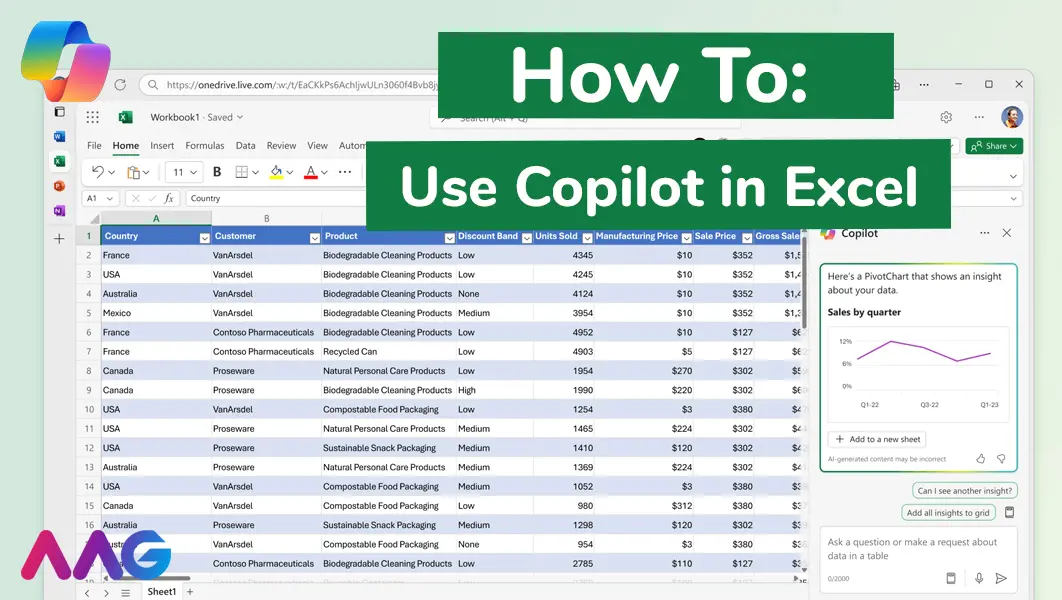
How to use Microsoft Copilot in Excel
Managing huge data sets and organising multiple spreadsheets is often time-consuming and tedious. Microsoft Copilot offers teams a powerful tool for streamlining data analysis and a range of other tasks within Excel - we show you how. Read More
How can AAG help you with Copilot?
Related insights
Browse more articles from our experts and discover how to make better use of IT in your business.

Employee of the Quarter – Ben Bedford
Congratulations to Ben Bedford, our Service Delivery Manager, who has been awarded Employee of the Quarter. He embodies all of our values and we’re both proud and delighted to celebrate his work and achievements this quarter. Read More

Welcoming Jake Taylor to the AAG service desk
IT service roles really do take all kinds, and we’re delighted to welcome former Head Chef, of the “Best Restaurant in Chesterfield” to AAG. Read More

20 Essential Questions To Ask Your IT Provider in 2026
Ensure you're getting the best IT support. Ask your existing provider these 20 essential questions to evaluate their services and consider if it's time to switch. Read More
