


64% of users said they spend less time processing email with the help of Copilot, according to the latest Microsoft Work Trend Index.
Microsoft Copilot has been designed – exactly as the name would suggest – to be your own personal Copilot, but for day-to-day work. It’s your everyday AI companion, and with the seamless integration within Microsoft 365 apps, this advanced AI is delivering business outcomes across the UK.
Let’s take a look at how to use Copilot for Microsoft Outlook.
How does Copilot enhance your efficiency?
Copilot works to enhance productivity and creativity by harnessing artificial intelligence (AI) through a technology classified as a large language data model (LLM) – Copilot uses the latest ChatGPT-4 and DALL-E 3 image generator. LLMs are distinguished by their extensive training on substantial volumes of text data, enabling them to comprehend and generate language similar to human expression. Copilot manages routine tasks so you can focus on revenue generation and the more creative aspects of your job.
How to Use Copilot to Summarise Email Threads
Email threads can become lengthy discussions filled with brainstorming and collaborative ideas – or sometimes just back-and-forth email tennis. It’s not uncommon to find yourself taking a deep dive trying to remember what was said, trying to understand the messages you’ve just been looped into, or worst of all, arriving back from a week in a sunny Spanish resort realising people in the thread are waiting on your return to make a decision.
This is where Copilot steps in as a time-saving hero. With one click, Copilot can distill an email thread, no matter how complex. It intelligently identifies and understands the contributions of each participant and summarises them into bullet points for you. From David’s analytical insights, Liv’s creative input, Ben’s strategic planning, or Michelle’s critical questions.
How to Draft an Email with Microsoft Copilot
Drafting emails with Copilot is available for both new email you are writing, and for replying to individual emails or email threads. If you want Copilot to help write the email from scratch, this is your best tool. However, if you’ve already produced a draft and you want Copilot to help improve this draft, then Copilot coaching is a more suited option.
When you’re ready to draft an email, simply tell Copilot what you need. For example, if you want to acknowledge your team’s contributions, you might say:
“Generate a draft thanking my team individually for their ideas on the social care campaign.”
Copilot will take your instruction and create a draft that reflects your tone and intent. It understands the nuances of language, so by including the word ‘individually’ in your prompt, Copilot will name and thank each member of your team in the email. Likewise, if you remove the word individually, then it will simply thank your team in one.
Best Tips to Improve Your Prompt with Copilot
To get the most out of Copilot, consider these tips:
- Be Specific: The more details you provide, the better Copilot can tailor the draft to your needs.
- Set the Tone: Let Copilot know if you want the email to be formal, friendly, or somewhere in between.
- Use Keywords: If there are certain phrases or ideas you want to include, mention them in your prompt.
- Keep it Concise: A clear and concise prompt will yield a more focused draft.
- Review and Revise: Copilot will give you a solid starting point, but always review and personalise the draft to ensure it meets your standards.
How to Use Copilot to Improve Your Emails
Your everyday AI companion is how Microsoft is positioning Microsoft Copilot, and the ability to use Copilot to improve your emails is a prime example of this positioning.
Away from the ability to draft an email from scratch or summarise a long email thread. Copilot provides a feature that will coach you on your submission, before you hit send. More than just a sounding board for grammar, but an AI that will offer specific improvements too.
Let’s explore how Copilot can transform your emailing experience.
What is Copilot Coaching?
Copilot coaching is an innovative feature that acts as your personal writing mentor. It’s the silent guide that hovers over your shoulder, offering suggestions and insights to refine your emails. Whether you’re drafting a critical message to a colleague, composing an update to your manager, or even replying to a long email thread you’ve been looped into (we’ve all been there), Copilot ensures your tone, context, and content hit the right notes.
The Daily Coach in Your Inbox
Imagine having a coach who understands the nuances of email communication and is available at your beck and call. That’s what Copilot brings to your daily routine. It’s not about changing your message but enhancing it to ensure clarity, assertiveness, and the right level of formality.
Copilot does this by reviewing the thread of emails (if there is one), or by learning your usual tone, to understand what the readers (those you’re replying to), require. Then it will analyse your draft to offer suggestions on how to improve your message, like any good coach, it will not implement these changes for you but allow you to implement the ones you agree with.
Remember, this is so much more than a grammar check and it’s not about rewriting your narrative; it’s about enriching it. With Copilot’s coaching, every email becomes an opportunity to enhance your message.



How to use Copilot to keep meeting minutes and action points (updated 2026)
Managing emails efficiently can be a daunting task. Copilot in Outlook can enable you to catch up, prepare and follow-up with ease. Read more. Read More

Copilot FAQs
Whether drafting documents, summarising emails, or designing slides, Copilot can save you valuable time with cutting-edge AI features in your favourite Microsoft 365 apps. We've compiled some frequently asked questions to guide you through your Copilot journey. Read More
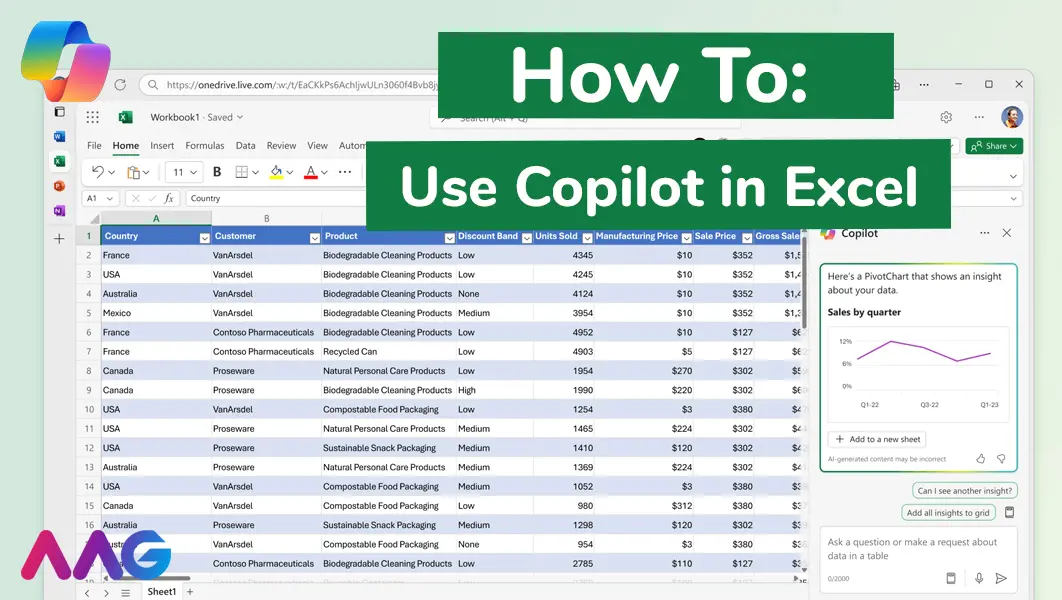
How to use Microsoft Copilot in Excel
Managing huge data sets and organising multiple spreadsheets is often time-consuming and tedious. Microsoft Copilot offers teams a powerful tool for streamlining data analysis and a range of other tasks within Excel - we show you how. Read More
How can AAG help you with Copilot?
Related insights
Browse more articles from our experts and discover how to make better use of IT in your business.

Employee of the Quarter – Ben Bedford
Congratulations to Ben Bedford, our Service Delivery Manager, who has been awarded Employee of the Quarter. He embodies all of our values and we’re both proud and delighted to celebrate his work and achievements this quarter. Read More

Welcoming Jake Taylor to the AAG service desk
IT service roles really do take all kinds, and we’re delighted to welcome former Head Chef, of the “Best Restaurant in Chesterfield” to AAG. Read More

20 Essential Questions To Ask Your IT Provider in 2026
Ensure you're getting the best IT support. Ask your existing provider these 20 essential questions to evaluate their services and consider if it's time to switch. Read More
