


How to Prepare a Word Document for a PowerPoint
If you don’t have a ready-made Word document, you can even use Microsoft Copilot to draft this. To begin, open a blank Word document and activate Copilot. For instance, if you’re presenting financial data, simply point Copilot to your document containing the financial overview. Copilot will analyse the content, understanding the context, and generate a Word document in no time. You can go back and forth with the AI until you’re happy, or add in your own elements.
When creating a Word document for a Powerpoint, ensure your document has a clear structure with an overview, summary, and the necessary data (such as financial data discussed). This will assist Copilot in the creation of a PowerPoint presentation.
How to Create a Branded PowerPoint Theme
Okay, the next step to turning a Word document into a Powerpoint is to have a ready-made Powerpoint theme. Remember, in having this you will have a consistent and branded template for every Powerpoint. In addition, when using the theme with Copilot the AI will stick to your brand guidelines to save you even more time. The good news is, Copilot adds a touch of creativity when generating Powerpoints. For example, if your financial data is presented in a block format, Copilot will organise it into an easy-to-consume table, enhancing readability and comprehension.
On top of this creativity, Copilot can suggest images related to your company’s field, say outsourced IT support, to add visual appeal to your presentation. While it may not be perfect, you can always edit and personalise the presentation to fit your brand’s theme and style.
How to turn a Word Document into a Powerpoint Presetation?
- Open your Word document: Start by opening the Word document that contains the content you want to convert into a PowerPoint presentation.
- Create a new PowerPoint presentation: Open PowerPoint and create a new blank presentation (this is where you choose your branded theme).
- Access Microsoft Copilot: In PowerPoint, go to the Home tab on the ribbon and select the Copilot button.
- Choose the conversion option: Select the option to create a presentation from a file.
- Paste the link to your Word document: Copy the link to your Word document from OneDrive or SharePoint and paste it into the prompt field in Copilot.
- Generate the slides: Let Copilot generate the slides for you. It will automatically create slides based on the headings, subheadings, tables, and images in your Word document.
- Review and customise: Once the slides are generated, review them and make any necessary changes to fit your requirements.
Does Copilot create a finished Powerpoint?
With Copilot for PowerPoint, you go from a blank page to a nearly complete presentation in no time. It’s not meant to be the final product, but it provides a solid foundation that you can edit and adjust to meet your needs.
Do you have more questions about Copilot? Read our Microsoft Copilot FAQs.
Tips for Presenting Your PowerPoint
Once your presentation is ready, Copilot can offer advice on improving it for an all-hands company meeting. It can provide specific examples and tips, such as highlighting the company’s commitment to sustainable transport or using tables to showcase significant revenue increases.
Copilot helps you become a better presenter, ensuring you convey the right message and make the most of your presentation. Whether you’re working with an existing PowerPoint or creating a new one, Copilot is there to enhance your content and presentation skills.
Get Copilot-Ready
Copilot’s powerful feature set makes it a great addition to any workforce. But setting up Copilot securely can feel daunting.
AAG’s comprehensive support helps you get the most out of Copilot. An initial consultation and readiness assessment ensures that the new services can be accessed securely, while customised training helps your team understand Copilot features and its applications in their workflows. We’ll even run regular updates based on your usage to keep your Copilot services optimised.
Contact us today to get your Copilot readiness assessment.

How can AAG help you with Copilot?

How to use Copilot to keep meeting minutes and action points (updated 2026)
Managing emails efficiently can be a daunting task. Copilot in Outlook can enable you to catch up, prepare and follow-up with ease. Read more. Read More

What is Microsoft Copilot?
Microsoft Copilot is the new AI-powered assistant that promises to enhance productivity for businesses using 365 products. Read More
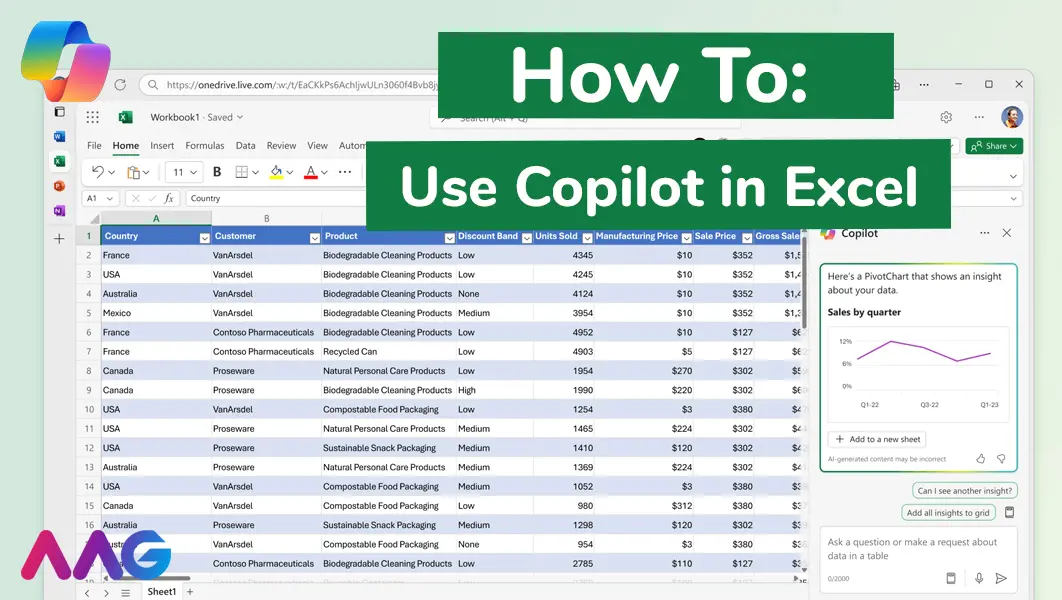
How to use Microsoft Copilot in Excel
Managing huge data sets and organising multiple spreadsheets is often time-consuming and tedious. Microsoft Copilot offers teams a powerful tool for streamlining data analysis and a range of other tasks within Excel - we show you how. Read More
Related insights
Browse more articles from our experts and discover how to make better use of IT in your business.

Employee of the Quarter – Ben Bedford
Congratulations to Ben Bedford, our Service Delivery Manager, who has been awarded Employee of the Quarter. He embodies all of our values and we’re both proud and delighted to celebrate his work and achievements this quarter. Read More

Welcoming Jake Taylor to the AAG service desk
IT service roles really do take all kinds, and we’re delighted to welcome former Head Chef, of the “Best Restaurant in Chesterfield” to AAG. Read More

20 Essential Questions To Ask Your IT Provider in 2026
Ensure you're getting the best IT support. Ask your existing provider these 20 essential questions to evaluate their services and consider if it's time to switch. Read More
