


How to Set an Out of Office Reply in Outlook
An out of office reply in Outlook is an automatic response letting people that have emailed you know you’re away. This is really helpful if you’re on holiday, sick, or just not checking your emails for a while. It lets people know when you’ll be back and who they can contact if they need help right away.
We hope that the reason you’re setting an out of office (OOO) is because you’re going away on holiday (it’s all of our favourite type of OOO).
However, whatever the reason you need to set your out of office on, here’s how.
How to set Out of Office Reply in Outlook
- Open Outlook: Start by opening your Outlook app on your computer. This is where you usually check your emails.
- Go to File (or Settings if on new Outlook): Look at the top left corner of the screen. You’ll see a tab that says “File.” Click on it.
- Automatic Replies: In the menu that appears, find and click on “Automatic Replies” This will open a new window.
- Turn on Automatic Replies: In the new window, you’ll see an option that says “Send automatic replies.” or “Turn on automatic replies” Click on this to turn it on.
- Set Your Dates: If you know when you’ll be away, you can set the start and end dates for your out-of-office reply. This means the automatic replies will only be sent during this time. If you don’t set dates, the replies will start immediately and remain on until you turn them off.
- Write Your Message: You can write your message in two boxes. One is for people inside your organisation (like your coworkers), and the other is for people outside your organisation (like clients or suppliers). Write a short message in each box. There are examples below.
- Save and Close: Once you’ve written your messages, click “OK” or “Save” to set your out-of-office reply. Now, anyone who emails you will receive your automatic response.
- Turn It Off When You’re Back: When you return to work, don’t forget to turn off your out of office reply. Go back to the “Automatic Replies” section and select “Do not send automatic replies.” If you’ve scheduled an end date, you don’t need to remember this part.
Out of Office Email Examples
Professional Out of Office Example
Hi,
Thank you for your email. I am currently out of the office and will be unavailable until [return date]. During this time, I will have limited/no access to emails.
For urgent matters, please contact [colleague’s name] at [colleague’s email] or [phone number]. Otherwise, I will respond to your message upon my return.
Best regards,
[Your Name]
[Your Position]
[Your Company]
Straight to the Point Example
I am out of the office until [return date] and will not be checking emails.
For urgent matters, please contact [colleague’s name] at [colleague’s email].
I will respond to your message when I return.
Best,
[Your Name]
Funny Out of Office Example
Hello there!
You’ve caught me in a great mood… because I’m currently out of the office, sipping an iced drink, book in hand, somewhere sunny (hopefully). Either way, I won’t be responding to emails until [return date].
My emails have not been forwarded (no one wants to deal with that).
If it’s urgent, you might have more luck sending a carrier pigeon or contacting [colleague’s name] at [colleague’s email]. If not, I’ll get back to you as soon as I’ve recovered from my time away.
Thank you,
[Your Name]
Casual Out of Office Email Reply
Hi,
I’m currently out of the office and will be back on [return date]. I’ll do my best to catch up on emails as quickly as possible when I return.
If it’s something urgent, please reach out to [colleague’s name] at [colleague’s email]. Otherwise, I’ll reply as soon as I can.
Best,
[Your Name]


How to use Copilot to keep meeting minutes and action points (updated 2026)
Managing emails efficiently can be a daunting task. Copilot in Outlook can enable you to catch up, prepare and follow-up with ease. Read more. Read More

What is Microsoft Copilot?
Microsoft Copilot is the new AI-powered assistant that promises to enhance productivity for businesses using 365 products. Read More
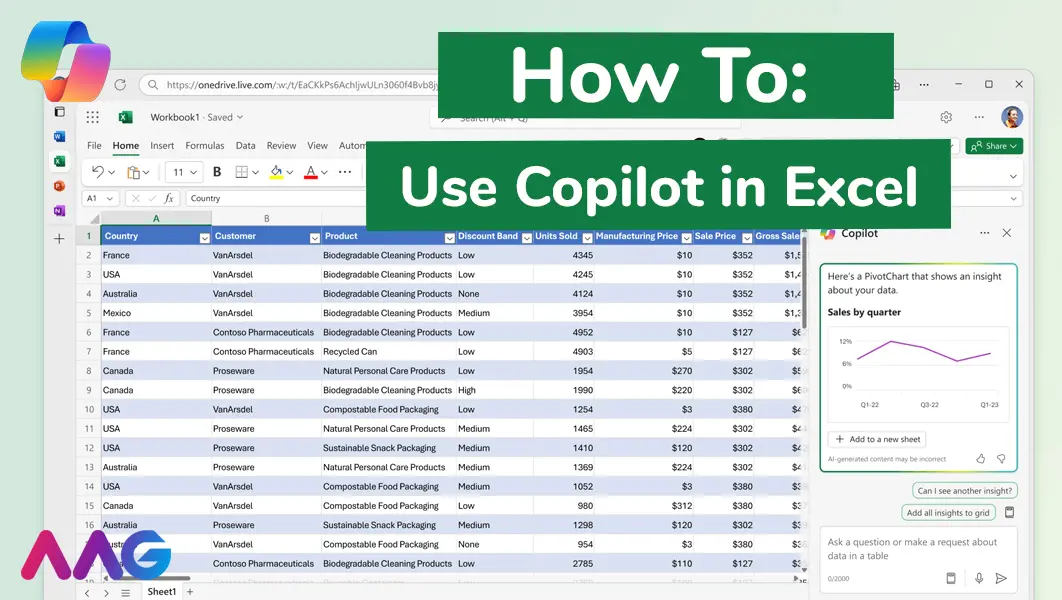
How to use Microsoft Copilot in Excel
Managing huge data sets and organising multiple spreadsheets is often time-consuming and tedious. Microsoft Copilot offers teams a powerful tool for streamlining data analysis and a range of other tasks within Excel - we show you how. Read More
How can AAG help you with your IT Support?
Related insights
Browse more articles from our experts and discover how to make better use of IT in your business.

Employee of the Quarter – Ben Bedford
Congratulations to Ben Bedford, our Service Delivery Manager, who has been awarded Employee of the Quarter. He embodies all of our values and we’re both proud and delighted to celebrate his work and achievements this quarter. Read More

Welcoming Jake Taylor to the AAG service desk
IT service roles really do take all kinds, and we’re delighted to welcome former Head Chef, of the “Best Restaurant in Chesterfield” to AAG. Read More

20 Essential Questions To Ask Your IT Provider in 2026
Ensure you're getting the best IT support. Ask your existing provider these 20 essential questions to evaluate their services and consider if it's time to switch. Read More
